English
 Deutsch
 Italiano
 Français
 Português
 ไทย
ไทย
 Tiếng Việt
 Polski
 Türkçe
 Nederlands
 Română
 한국어
한국어
 Svenska
 Español
The gap between paper trading success and live trading failure puzzles most traders. You nail every setup in simulation, then struggle when real money hits the market. TradingView captures both scenarios, creating a unique opportunity to identify exactly where execution breaks down.
Your paper trading data shows what your strategy can achieve under ideal conditions, while live trading data reveals how psychology, timing, and market dynamics affect real performance. These datasets pinpoint the specific execution gaps that separate theoretical profits from actual results.
How to Export Trade History from TradingView
Method 1: Export from Replay Trading (XLSX Format)
Step 1
Access Replay Trading.
Click on the “Replay Trading” tab at the bottom of your TradingView interface to open the paper trading environment.

Step 2 Open Historical Data Trading panel.
Look for the “Historical data trading” section in the Replay Trading interface and click on “Download data as XLSX” to export your replay trading history as an Excel-compatible file containing your complete trade records.

Please note it requires a Premium TradingView subscription plan to allow such a trading history export.
Method 2: Export from Paper Trading or a Broker Account (CSV Format)
Use this method for trades placed in TradingView Paper Trading or through a broker connected to TradingView (live or demo account).
Step 1. Open the trading panel. At the bottom of your TradingView chart, open the panel of the account you traded on — “Paper Trading” or the name of your broker.
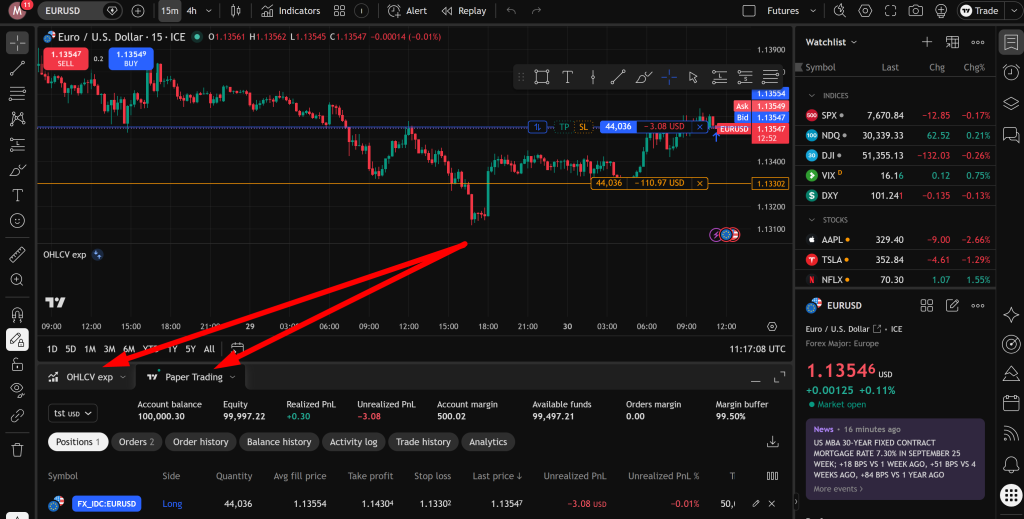
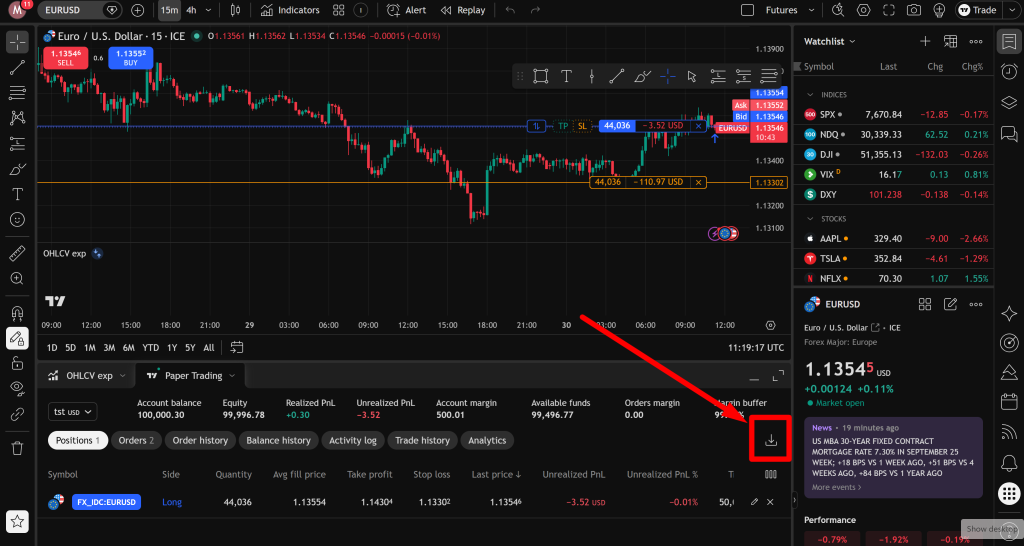
Step 2. Open the Download data window. Click the download icon (arrow pointing down) at the right edge of the trading panel, above the table.
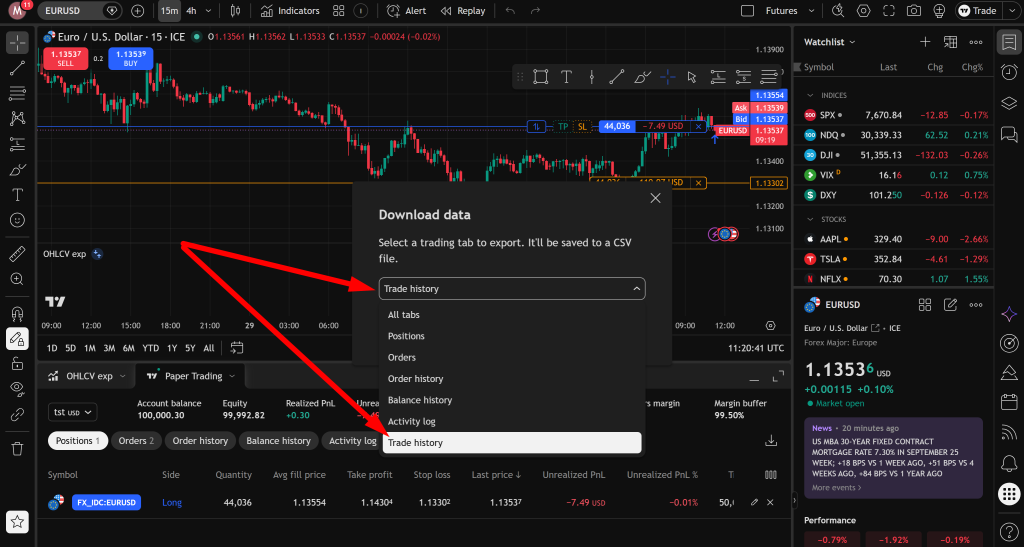
Step 3. Select “Trade history”. In the “Select a trading tab to export” list, choose Trade history. This tab contains every closed trade exactly as TradingView matched it — entries, exits, partial closes and reversals — with the net P&L and commission in your account currency. Do not choose “Positions” or “Orders”: they only contain open positions and working orders. “Order history” also works, but it lists single orders, so Forex Tester Online has to rebuild the trades from them — use it only if “Trade history” is not available.
Step 4. Download the file. Click the download button. TradingView saves a CSV file to your computer.
Step 5. Import it into Forex Tester Online. Upload the CSV file in the Import Trades window. Keep the file as it is — do not open and re-save it in Excel, this can change dates and number formats.
Harness Your Complete Trading Intelligence
Ready to decode your performance patterns?
Your exported TradingView data captures both your strategic decision-making and the market environments where those decisions played out. This dual-layer information enables sophisticated analysis that examines not just what you traded, but how market conditions influenced your timing, positioning, and overall effectiveness.
Whether your data comes from paper trading validation or live broker execution, the analytical insights remain equally valuable. Understanding your performance patterns across different market scenarios allows you to identify your optimal trading conditions and refine your approach for maximum consistency.
Turn your TradingView experience into strategic intelligence.

Forex Tester Online
Detect profit leaks for free in your TradingView trade data analyzing it in FTO