
How to place orders in Forex Tester trading simulator quickly and easily [Video guide]
After starting the test, you can place orders in the Forex Tester program.
There are two types of orders:
- A market order — a position is opened immediately by the current market price.
- A pending order — a position is placed at desired price and will be executed when the market price hits that level.
You can place, modify or delete orders using the buttons located in the Order tab.

- Market order — opens the Market order dialog window to place a new market order (you can also use the F2 key).
- Pending order (F3) — opens the Pending order dialog window to place a new pending order.
- Modify order (F4) — allows you to change Stop Loss and Take Profit parameters for already opened market orders, as well as both Stop Loss / Take Profit levels and the order’s entry price for pending orders.
* To make changes, select the order first in Open Positions or Pending Orders tabs in the Terminal window.
* You can also use this window to close the trade. - Close order (F5) — closes the selected open position.
- Close all positions and orders (Ctrl+C) — closes all open market and pending orders.
- Open Group of orders (Ctrl+O) — places a group of orders with predefined parameters.
- Duplicate position — makes a copy of the selected order with the same SL/TP and lot values.
- Deposit money — allows adding money to your virtual account.
- Move Stop Loss to Breakeven — allows quickly set the SL value as the price of entry point.
- Open Forex Speed Up — runs the one-click trading tool.
Most of these buttons are duplicated in the right mouse click popup menu in the Open Positions and Pending orders tabs:
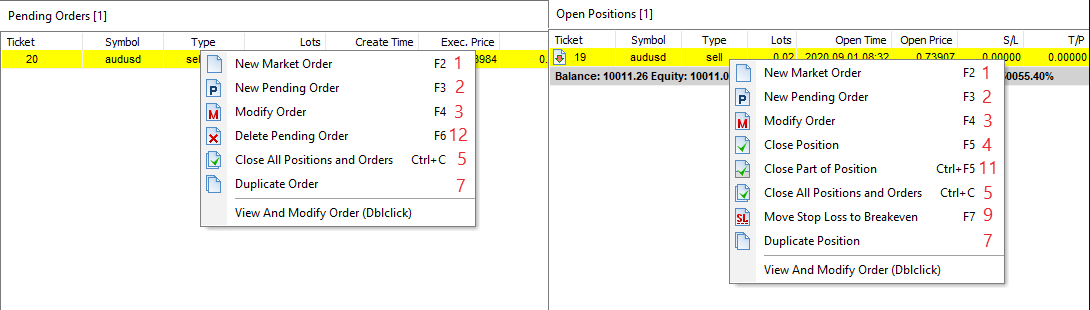
There are also some additional buttons in this menu:
- Close part of position (Ctrl+F5)— partially closes the selected order.
- Delete pending order (F6) — deletes the selected pending order.
Market order dialog
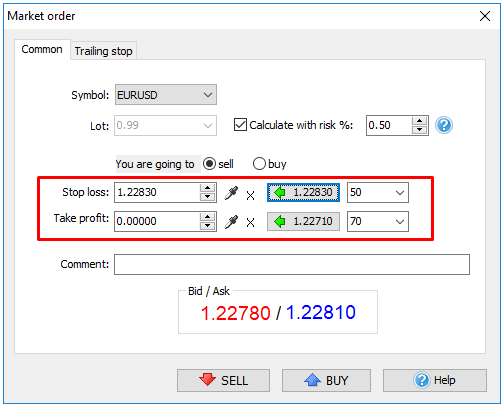
You can place a new market order here. There are the Common and Trailing Stop tabs in this dialog window.
-
The Common tab
- Symbol — a dropdown list with the currency pairs you can trade.
- Lot — a dropdown list with the order’s lot size that you can set manually.
- The “Calculate with risk %” option defines the lot size based on risk management.
* Note that if you choose a risk-based lot calculation, you must enter a Stop loss value. - The “sell” and “buy” radio buttons are used to define the calculation mode — sell or buy.
- The “Stop loss” and “Take profit” options are used to adjust SL and TP values. You can define the price either manually by simply typing it directly in or using droplet buttons to pick it up directly from the chart, or automatically using the simple calculator on the right.
-
The Trailing stop tab
Allows you to define trailing stop parameters for this order.
- The Activate on block
- Immediately — trailing stop will be activated immediately after placing an order.
- If profit is bigger or equal — trailing stop will be activated when the profit of the order is higher or equal to the selected value.
- The Trailing settings block
- Trailing stop (points): — the size of trailing stop in points.
- Step of change (points): — stop loss will be changed when the profit exceeds the selected number of points from its previous fixed value.
Pending order dialog
You can place a new pending order here. This window has the same Common and Trailing stop tabs, but with the slight difference.
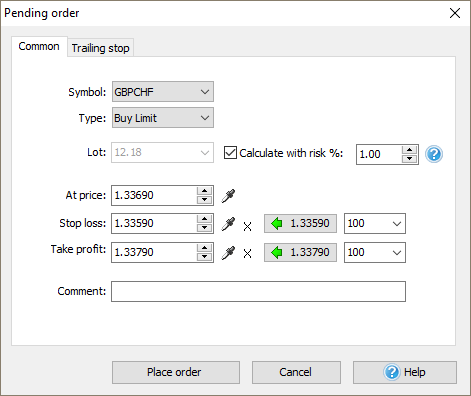
On the Common tab, you can also set:
- The Type of the pending order — buy limit, sell limit, buy stop, sell stop.
- At what price your order should be executed.
Please note that the order type will affect your SL and TP values calculation.
You can also place orders using a popup menu by the right mouse click on the chart.
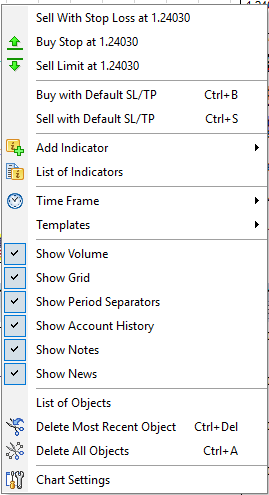
This menu allows you to pick up the price from the chart at the point where you right-clicked.
You can see this price in the menu (here 1.24030). In this example, you have 5 choices:
- Sell with the predefined Stop Loss at 1.24030 price.
- Place Buy Stop order at 1.24030 price.
- Sell Limit order at 1.24030 price.
- Execute a quick buy order (Ctrl+B) with predefined parameters.
- Execute a quick sell order (Ctrl+S) with predefined parameters.
* The predefined parameters are Stop Loss / Take Profit, Trailing stop, Lot size. You can define these parameters by clicking the “Default orders” button on the Settings tab:

Adjusting the Default order
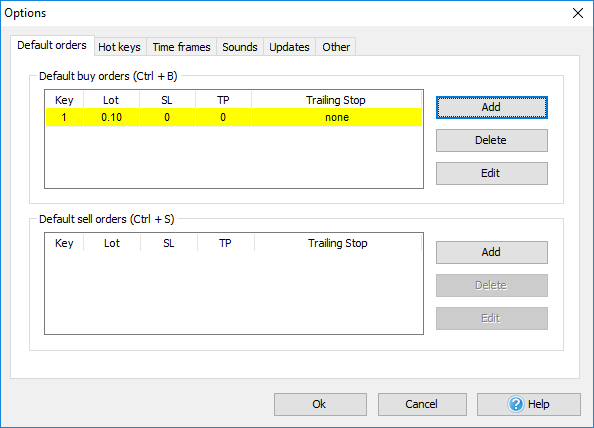
If you set there only 1 order in the list, the order will be set immediately after pressing Ctrl+B/Ctrl+S. Otherwise you will be asked to choose which order to execute:

Note: you can change the hotkeys for these and other actions via the “Hotkeys” button on the Settings tab.

Forex Speed Up tool
In the Forex Tester version, we’ve included the One-click-trading Forex Speed Up tool as a button in the Order tab.

You can also find this button in the Action/Orders menu on the Home tab:
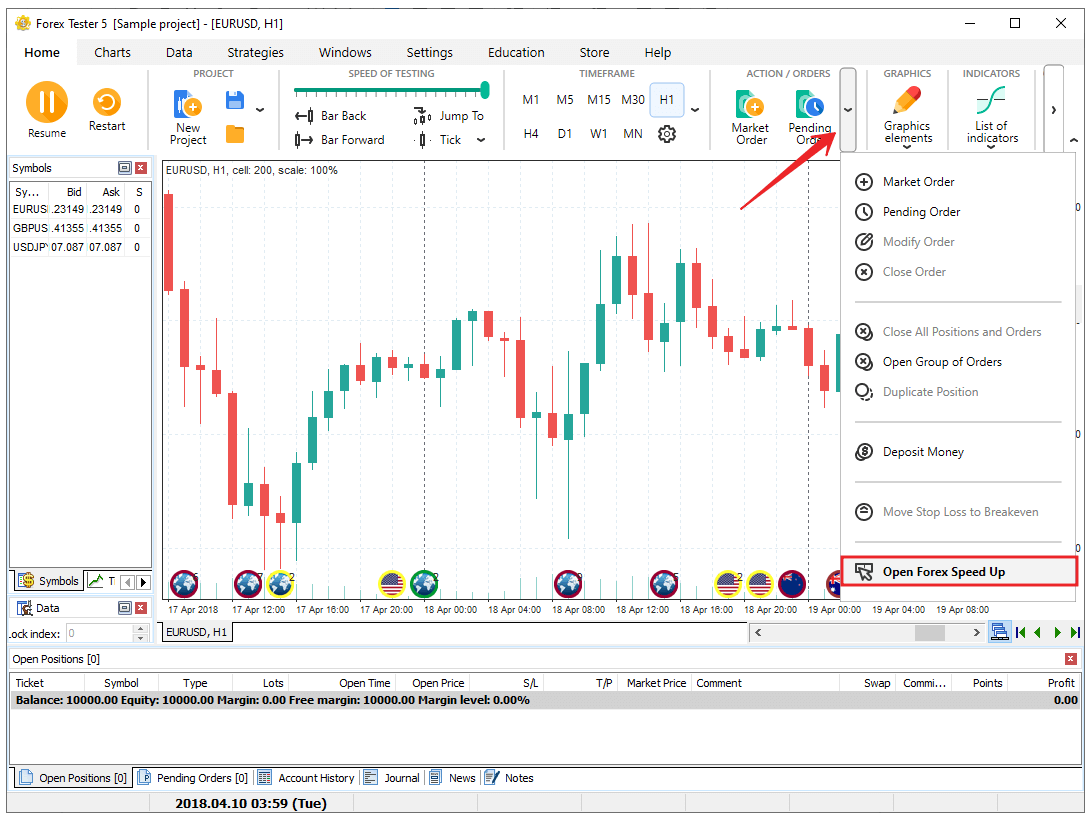
After the first start, you will see the window where you can download and install the Forex SpeedUP. All further starts will call up the tool in a separate window.
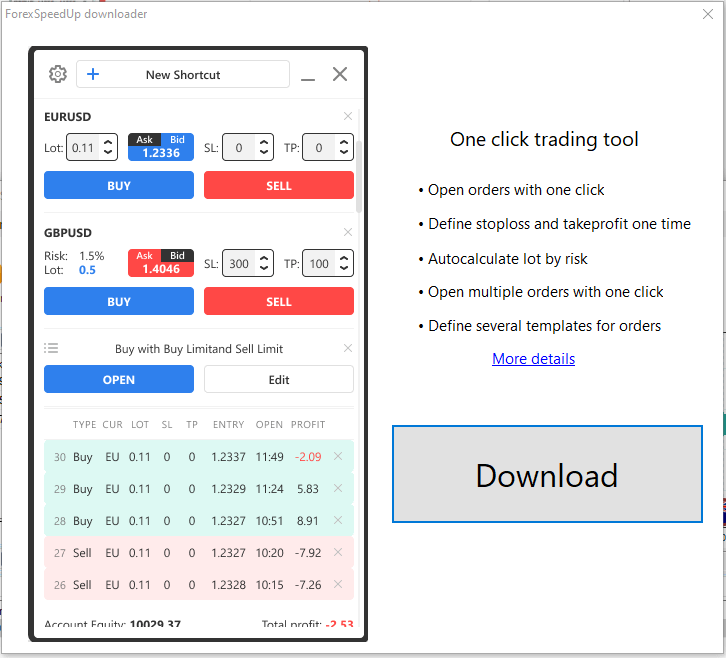
Click the “Download” button. The tool will be downloaded and added to your Forex Tester automatically.
After installation, the tool will start automatically. You will see the following window:
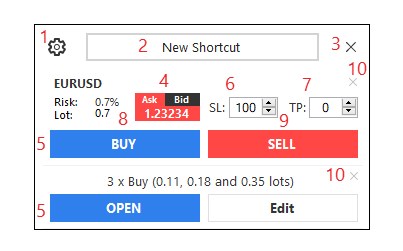
- The “Gear” button — calls up the Settings window.
The Settings window has 2 tabs: General and Aliases.
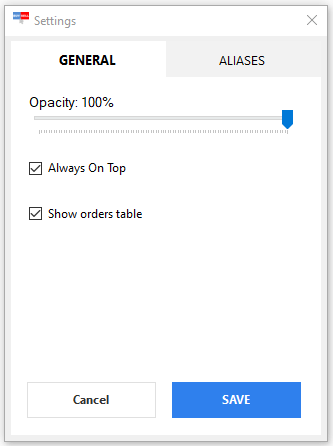
On the General tab, you can find the following settings:
- Opacity — allows setting transparency of the window.
- Always on top — allows to leave the program always “above” all other windows even if it does not have focus.
- Show orders table — enables the list of orders.
On the Aliases tab, you can find the list of symbols with their short names called aliases. To add a new alias, click the “Add new button” and fill in the fields.
To delete the alias, click on the “X” button next to the one you don’t need.
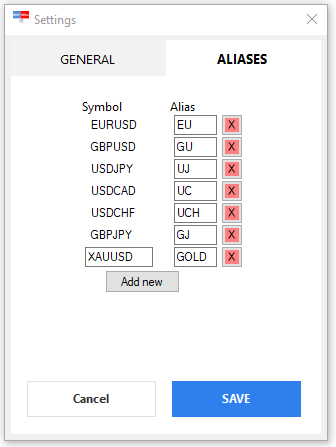
To save the changes, click the “Save” button.
- The “New Shortcut” button — allows adding a new order shortcut to the window.
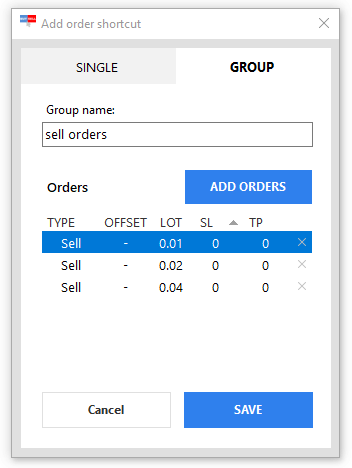
The settings on this window are divided into 2 groups: for single orders and groups of orders.
On the Single tab, there are the following settings:
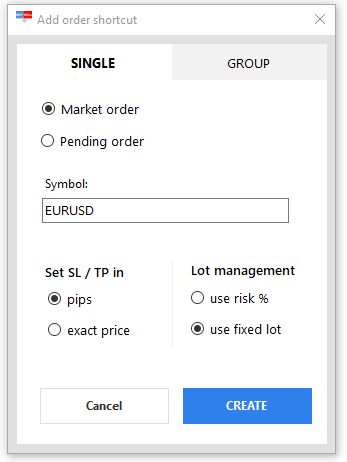
- Market/pending order — allows choosing between market or pending order.
- Symbol — symbol name.
- Set SL/ TP in — an option that defines how the SL and TP will be set (in “pips” or “exact price”).
- Lot management — an option that allows selecting how the lot (contract) size will be set — based on the Risk % or fixed lot value.
On the Group tab, you can add a group of orders and define the parameters for them so you will be able to open several orders at the same time.
- The “Close window” button.
- Current price monitor — allows you to switch between showing Bid and Ask prices by clicking the corresponding buttons.
- The shortcuts for the orders.
- The upper shortcut is for the order with a lot (contract) based on the Risk%. Requires the SL value filled.
- The lower shortcut is for the order with a fixed lot (contract) value.
- The Stop Loss field. Required for the lot based on the Risk %.
- The Take Profit field.
- The “BUY” button — opens long positions.
- The “SELL” button — opens short positions.
- The button that allows deleting the shortcut.
You can drag the Forex SpeedUp window to any location of your screen. Grab the window at any point (except buttons and text boxes) and carry it to the desired place.








 INTROMOB10